

See exactly where users interact — with full context
EaseUse heatmaps go beyond clicks by letting teams filter, segment, and compare interaction across screens, states, and user groups. This helps teams see where attention, friction, and drop-off begin on the screen itself.
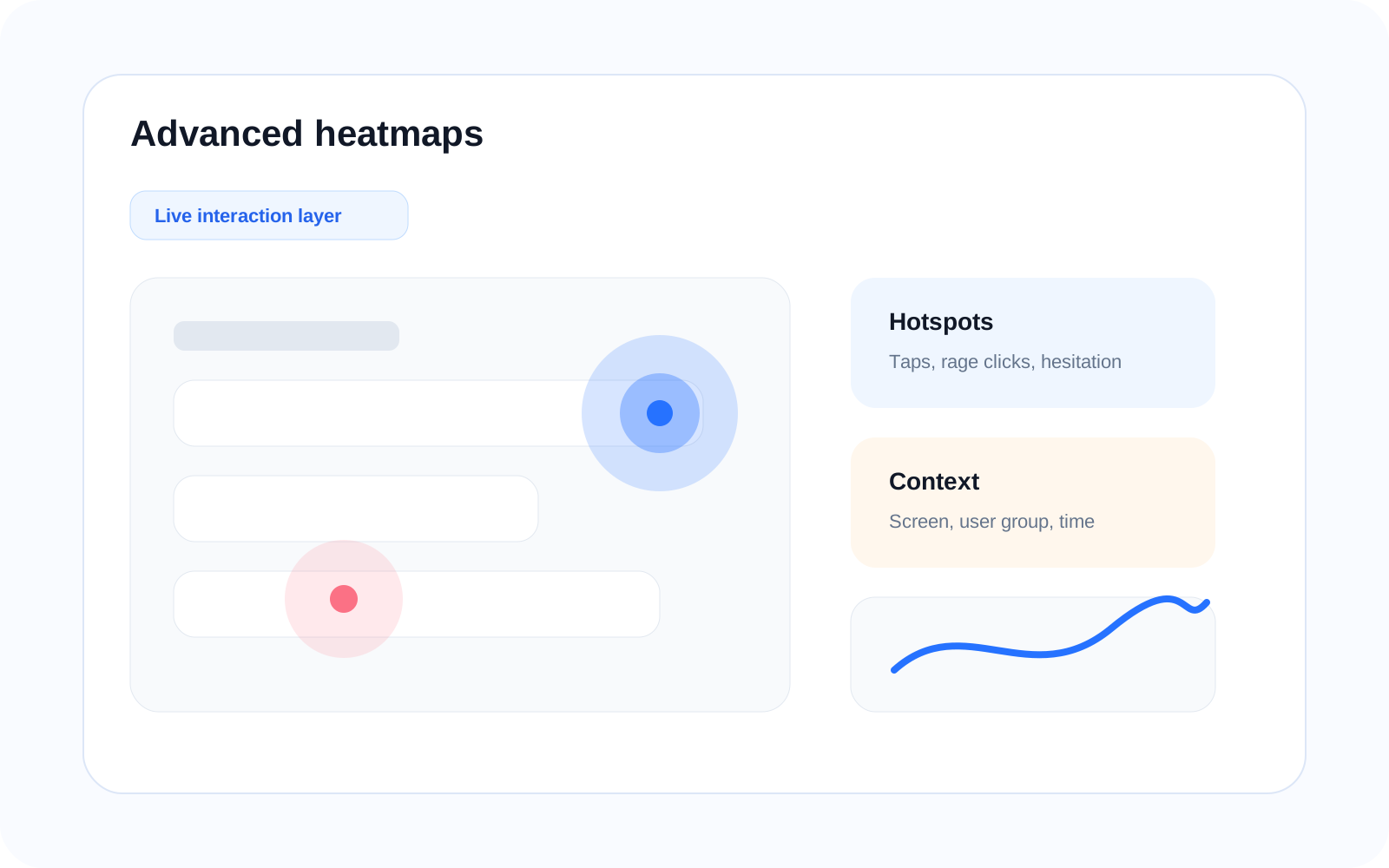
Core idea
Not just taps — interaction with context
Analyze user interaction across different screens, states, and segments to understand where attention, friction, and engagement occur. Compare how different users interact with the same screen to uncover meaningful differences in behavior, such as how new users use a product screen differently from returning users.
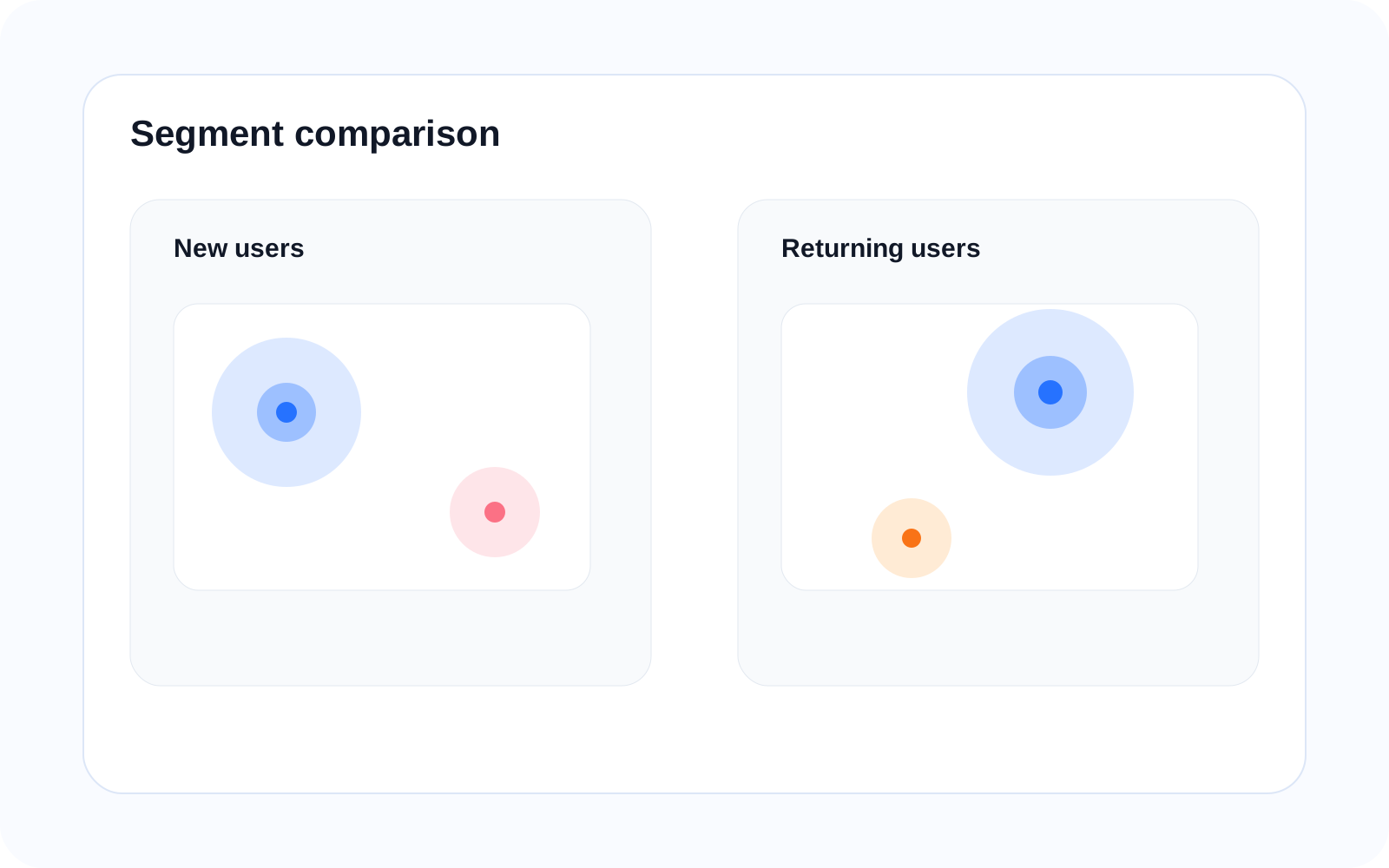
Filtering
Filter interactions with precision
Interaction Type
Filter taps, rage taps, dead taps, and scroll activity
Session Segments
Analyze by user type, journey stage, or behavior
Time Range
Understand how interaction changes over time
Device & Context
Compare interaction across devices and environments
Comparison Mode
Compare interaction across segments, states, or time periods
Version
Compare interaction across app versions and releases
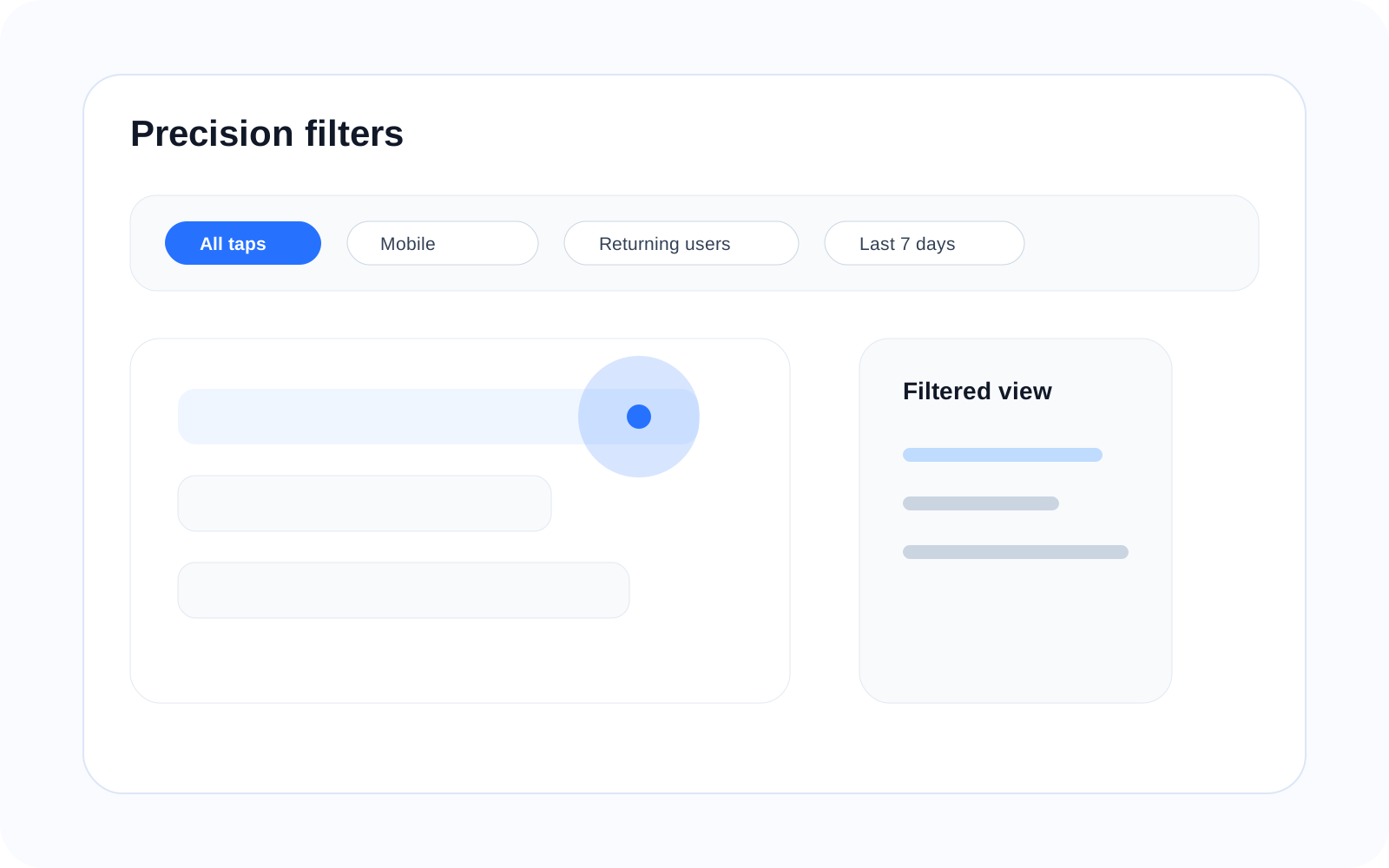
Screen states
Analyze interaction across screen states
Different states of the same screen can lead to very different interaction patterns. EaseUse maps interaction per state so hidden friction becomes visible instead of blending into one average view. Teams can compare interaction between states to see exactly where friction changes.
Logged in vs guest view
Error state vs success state interaction
Loading vs loaded screen
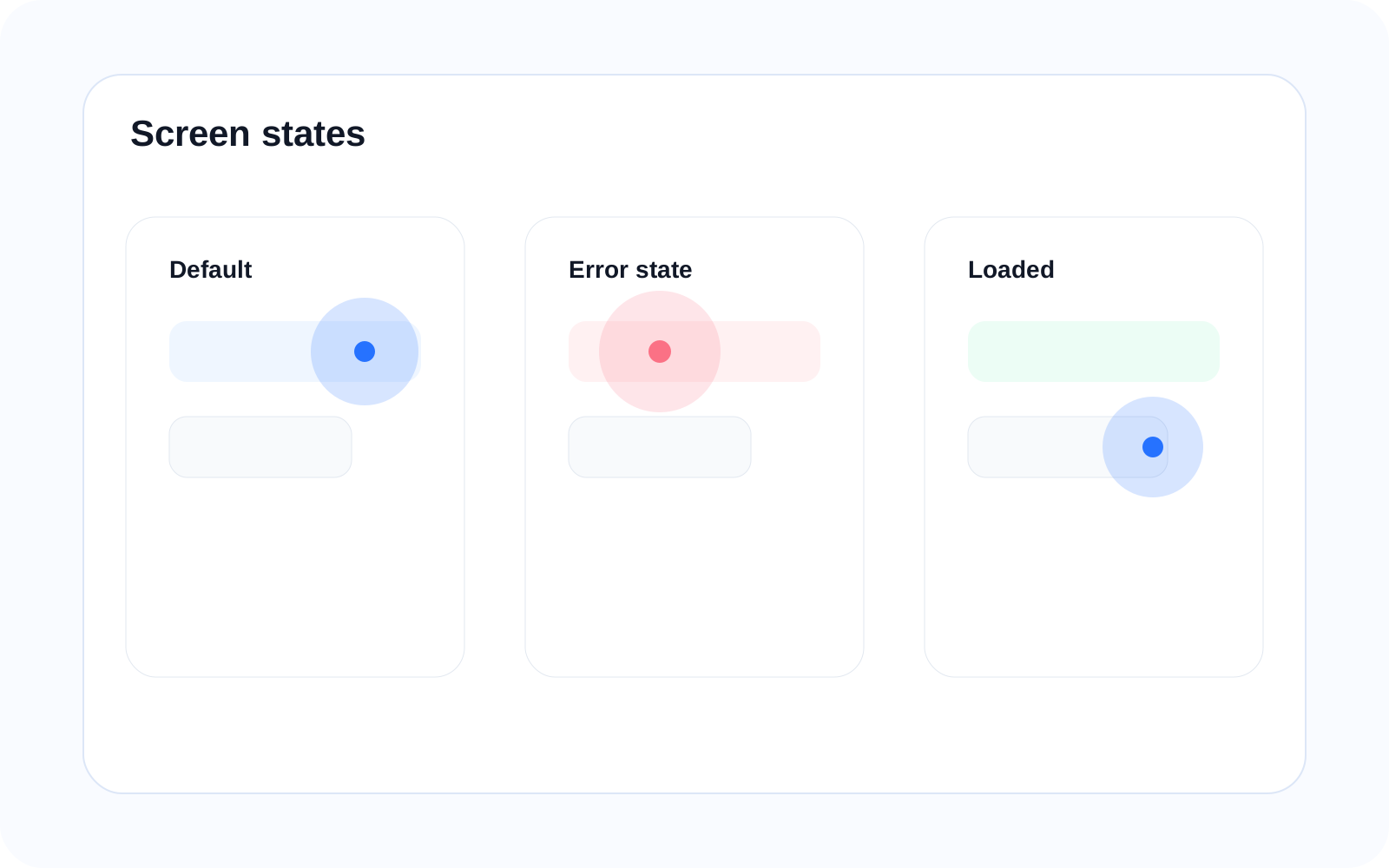
Screen mapping
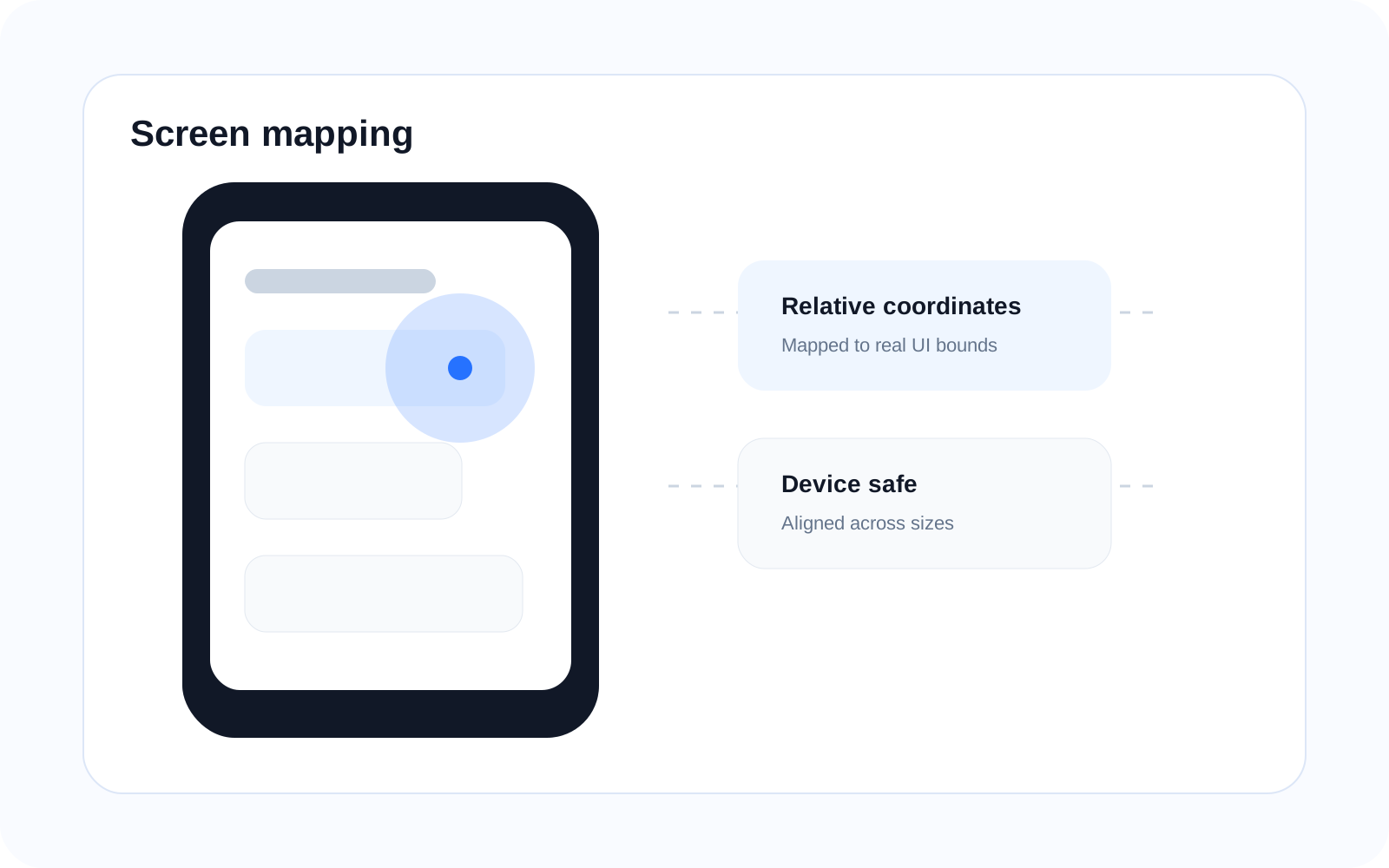
Map interaction to real screens
Heatmaps are aligned with real screen layouts so interaction stays accurately placed across devices and resolutions. Every interaction is mapped relative to the actual UI, not approximated from a generic screen frame.
Scroll & depth
Understand what users actually see
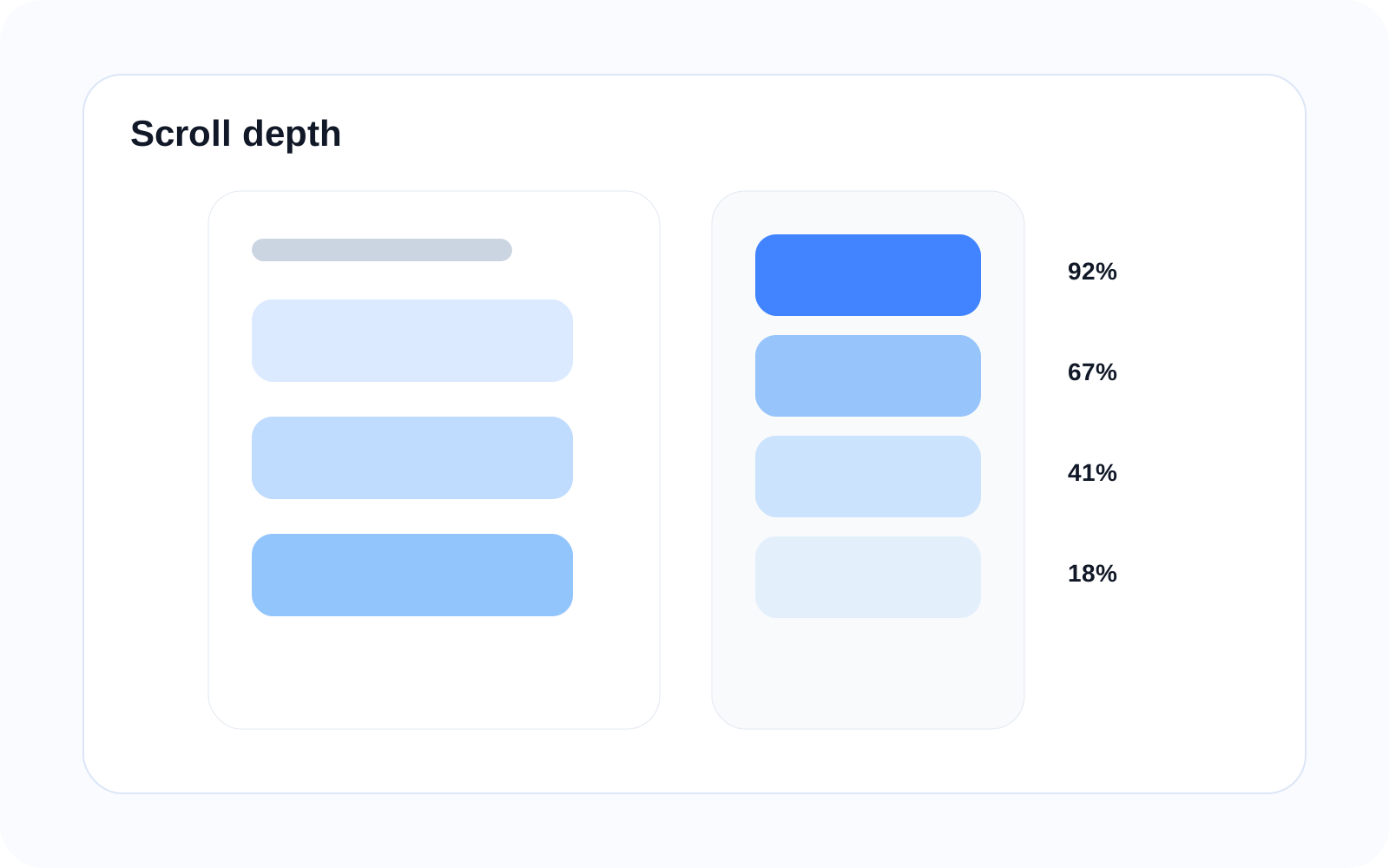
Scroll heatmaps reveal how far users explore, which sections they actually reach, and where attention starts to drop. Teams can also compare scroll behavior across different user segments or key flows to understand who is truly seeing key content.
Scroll depth distribution
Attention drop-off
Content visibility
From heatmap to insight
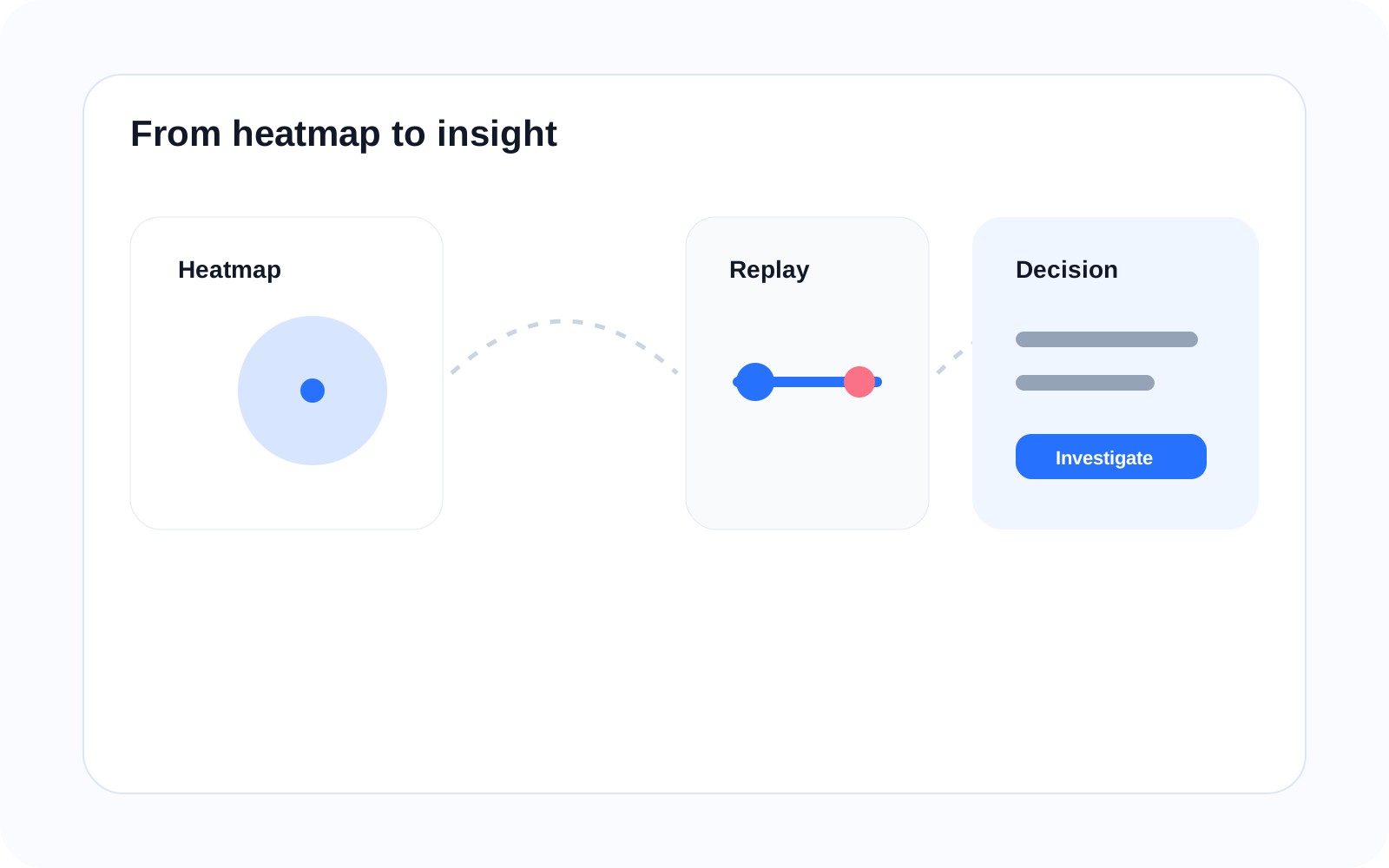
Turn interaction into decisions
Heatmaps connect directly to sessions and insights so teams can investigate why patterns occur, not just where they appear. Compare patterns across sessions to understand why interaction changes after a UI update, between high-completion and drop-off journeys, or across new and returning users.
Before vs after UI change
High completion vs drop-off sessions
New vs returning users
Compare interaction across contexts
Identify how behavior changes across different user journeys, screen states, and time periods.
Related features
Connected capabilities
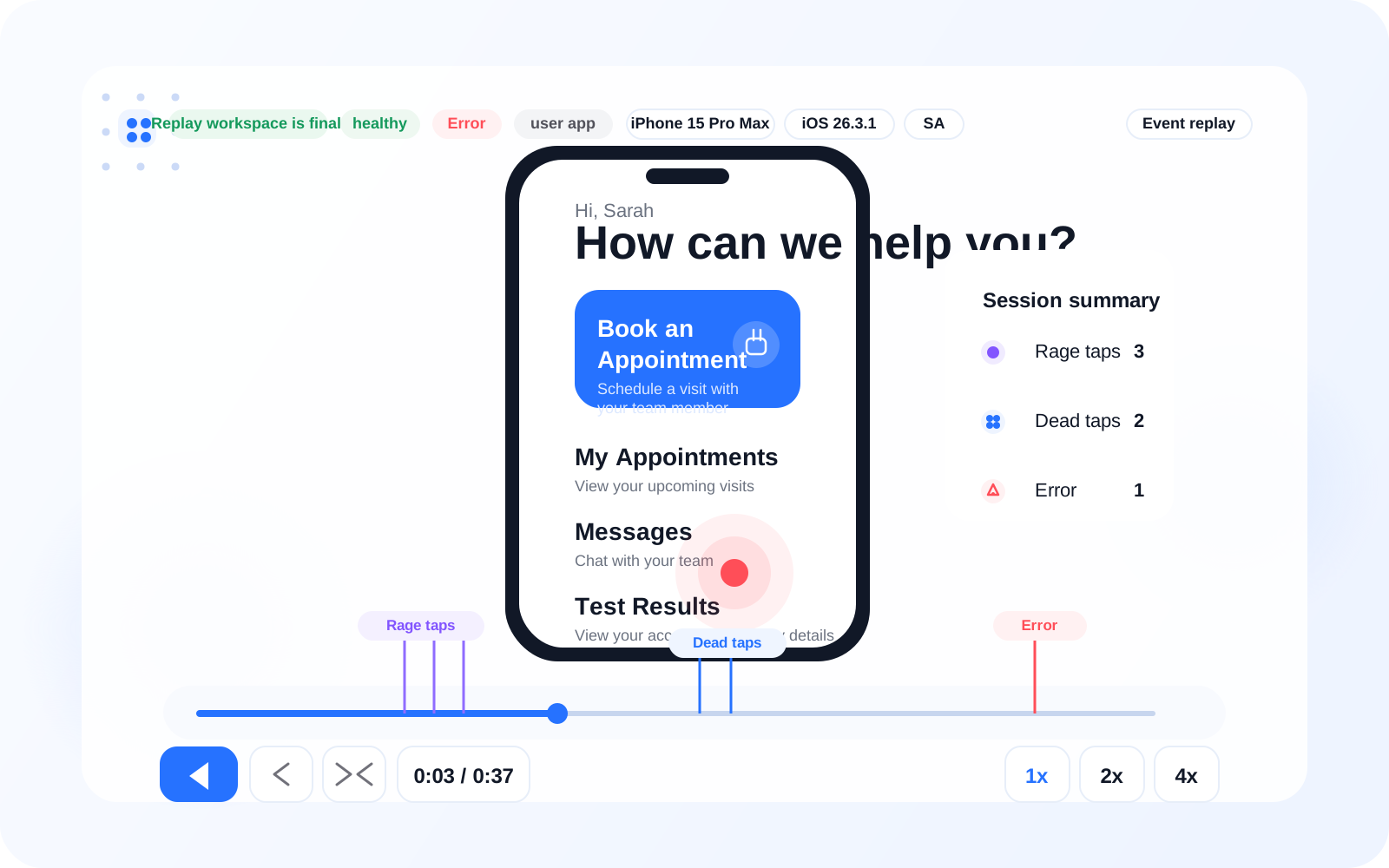
Session Replay
Watch sessions behind interaction patterns so teams can see what users were doing when hotspots formed. This helps explain why a cluster appears instead of only showing where it happened.
Zoning
Break screens into measurable areas so teams can move from visual interaction patterns to clearer operational metrics. This helps compare attention and friction across defined screen regions.
Screen Diagnosis
Understand why interaction fails when a screen shows low engagement, dead zones, or unusual clusters. This helps teams connect heatmaps to a specific design or journey issue.
FAQ