

Understand how each part of your screen performs
Zoning breaks screens into measurable areas so teams can identify which parts drive action, cause friction, or go unnoticed. It helps digital product teams understand which areas support task completion and which quietly hold users back.
Core idea
From screen to measurable zones
Divide any screen into zones and analyze how users interact with each area, from attention to action to failure. A primary CTA may have high exposure but low interaction, which can point to confusing copy, weak placement, or low confidence in the next step.
What you can measure
Measure every zone with context
Interaction
See where users tap, retry, or struggle within a zone.
Exposure
Understand which areas are actually seen and for how long.
Effectiveness
Measure how well a zone helps users take the next action.
Reach
Understand how many sessions and views reach a zone in the first place.
Weak zones
Find areas that fail to drive action
Detect zones with high visibility but low interaction, or with visible struggle but weak completion. This helps teams spot parts of a critical flow that are being seen but not helping users move forward.
High exposure, low taps
High dead taps
Repeated interaction with no progress
Opportunity scoring
Prioritize what to fix first
Opportunity Score combines exposure, interaction, and friction to highlight zones with the highest impact potential. It helps teams focus on areas where relatively small design or flow changes could improve task completion the most.
State and context
Analyze zones across different states
Compare how the same screen performs across different states, versions, or user contexts. This helps teams separate a generally weak zone from one that only fails in an error state, guest flow, or after a UI change.
Error state vs success state
Logged-in vs guest
Before vs after UI change
From zone to action
Move from insight to action
Jump from a zone directly into sessions, replays, or deeper analysis to understand why it behaves the way it does. That makes zoning useful for decisions, not just observation, when a product screen is underperforming.
Zone → session replay
Zone → frustration signals
Zone → journey analysis
Related features
Connected capabilities
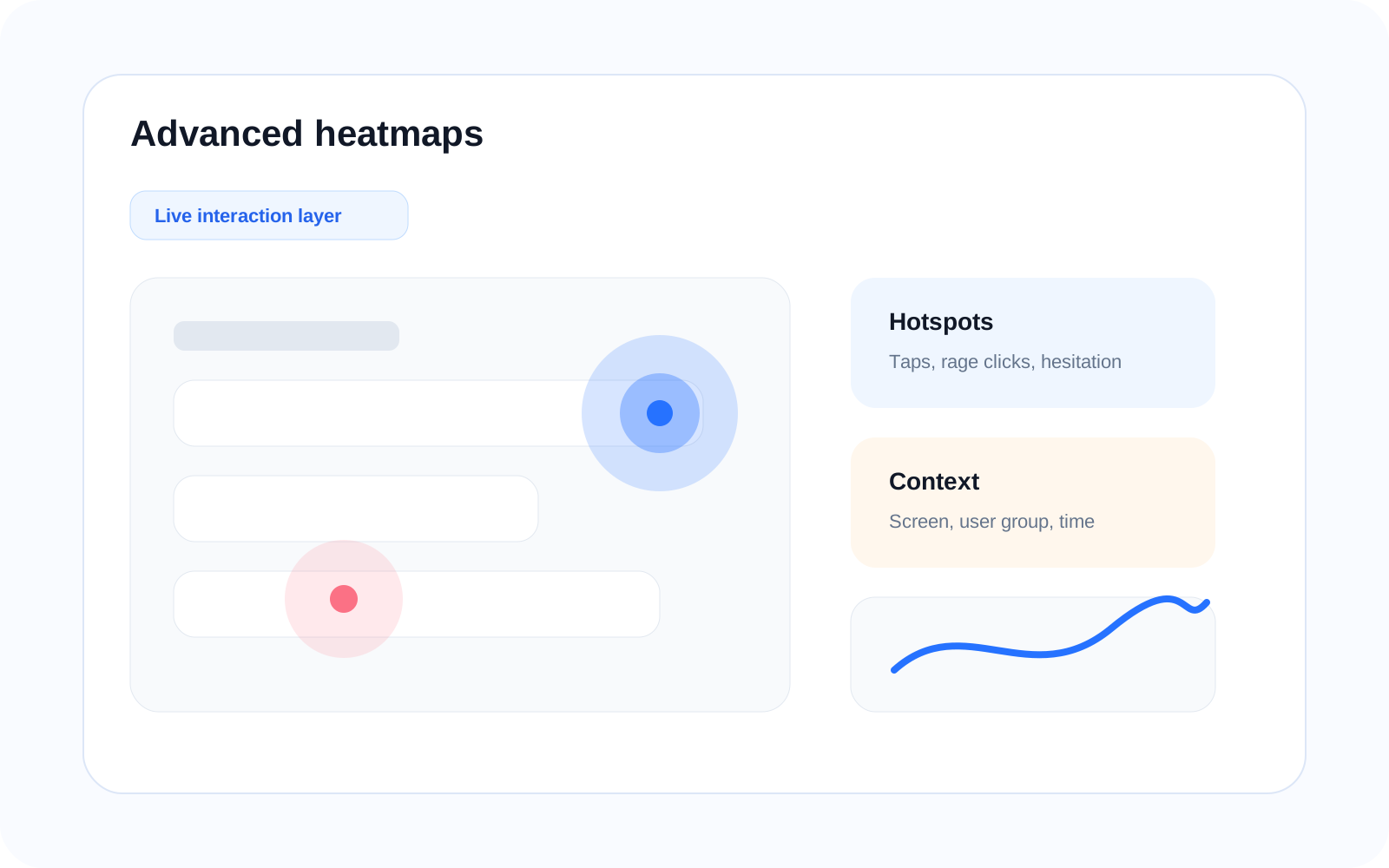
Heatmaps
Visualize interaction across the full screen before narrowing attention to specific areas. This helps teams see where patterns begin before evaluating which zone is helping or hurting progress.
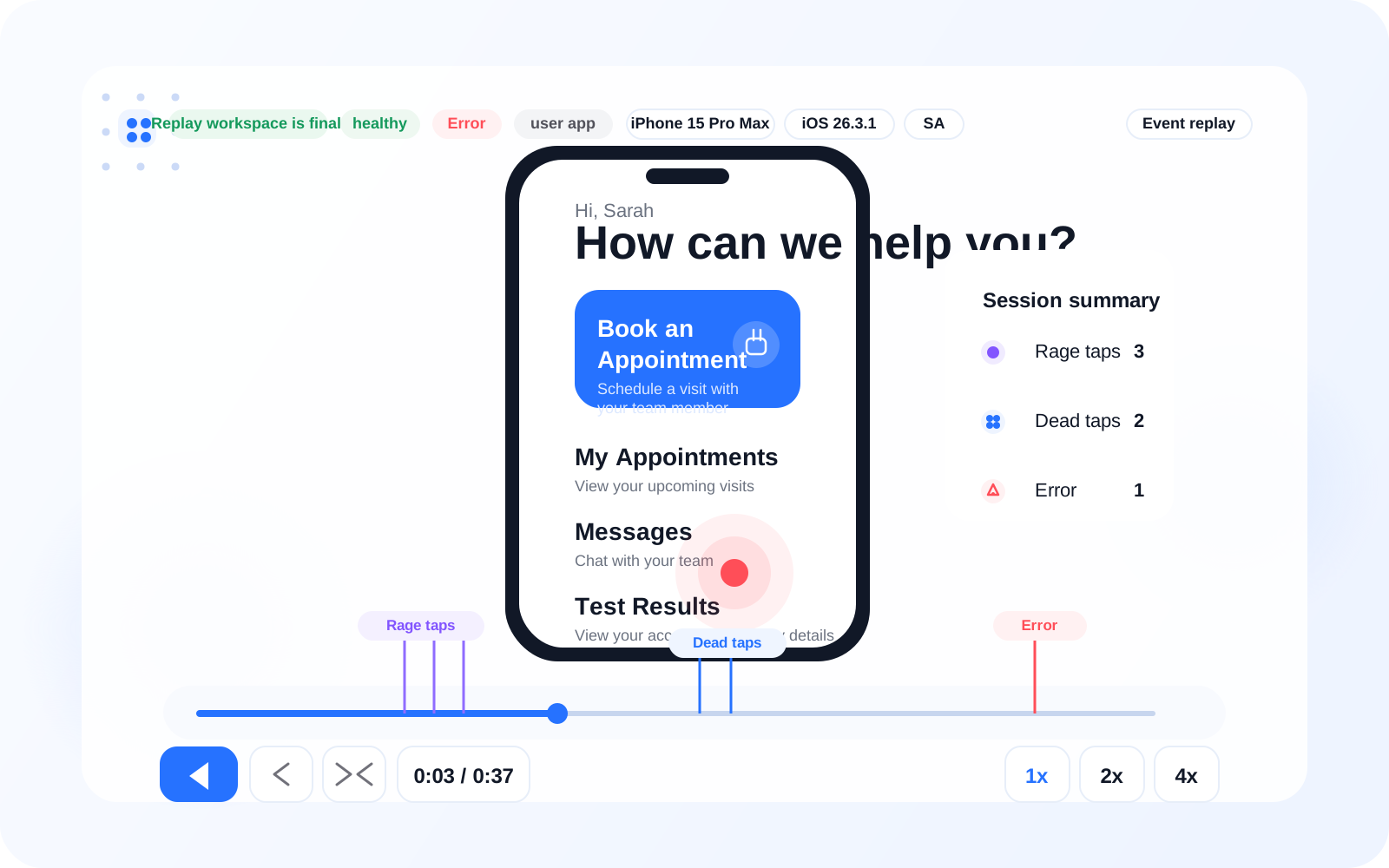
Session Replay
Watch the session behind a weak zone to understand what users were trying to do in that part of the interface. This gives context when a zone shows high visibility, low action, or visible struggle.
Screen Diagnosis
Move from zone performance to a clearer explanation of why a screen is underperforming. This helps teams connect a weak zone to layout problems, unclear hierarchy, or a broken next step.
FAQ